 COME
COMECOME Language, Sound and Help Controls Explained
Language, Music and Effects are interface preferences in the pictured Settings panel. Keep those controls separate from the update check and account recovery.
Read the Settings panel
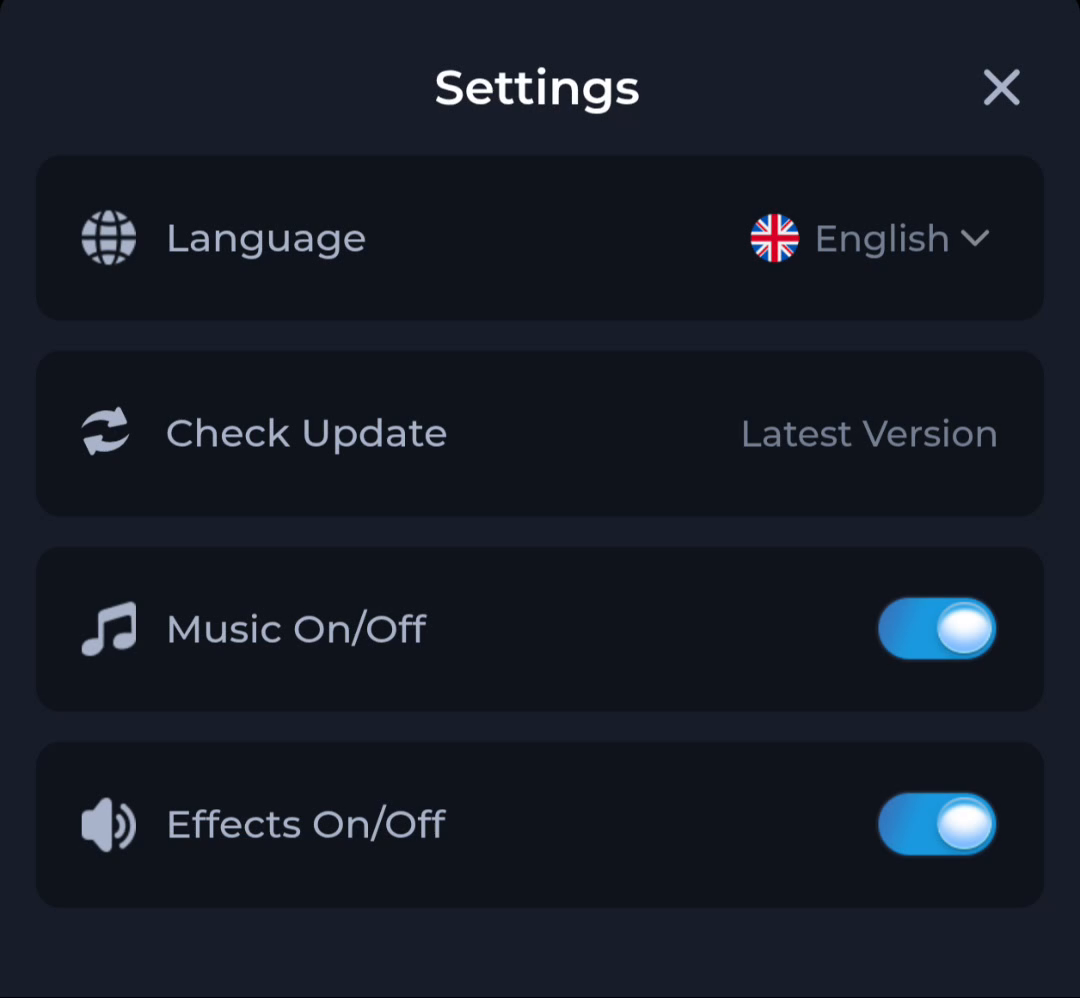
Language appears at the top, followed by Check Update, Music On/Off and Effects On/Off. A toggle describes the visible setting. It does not tell you which Android permissions the app has or whether a release has changed.
Choose the relevant control
- For interface text, inspect the language options shown on your device.
- For app sound, review the Music and Effects switches.
- For release information, read the result of Check Update.
- For an account problem, use the relevant help or recovery topic.
Find help from the account menu
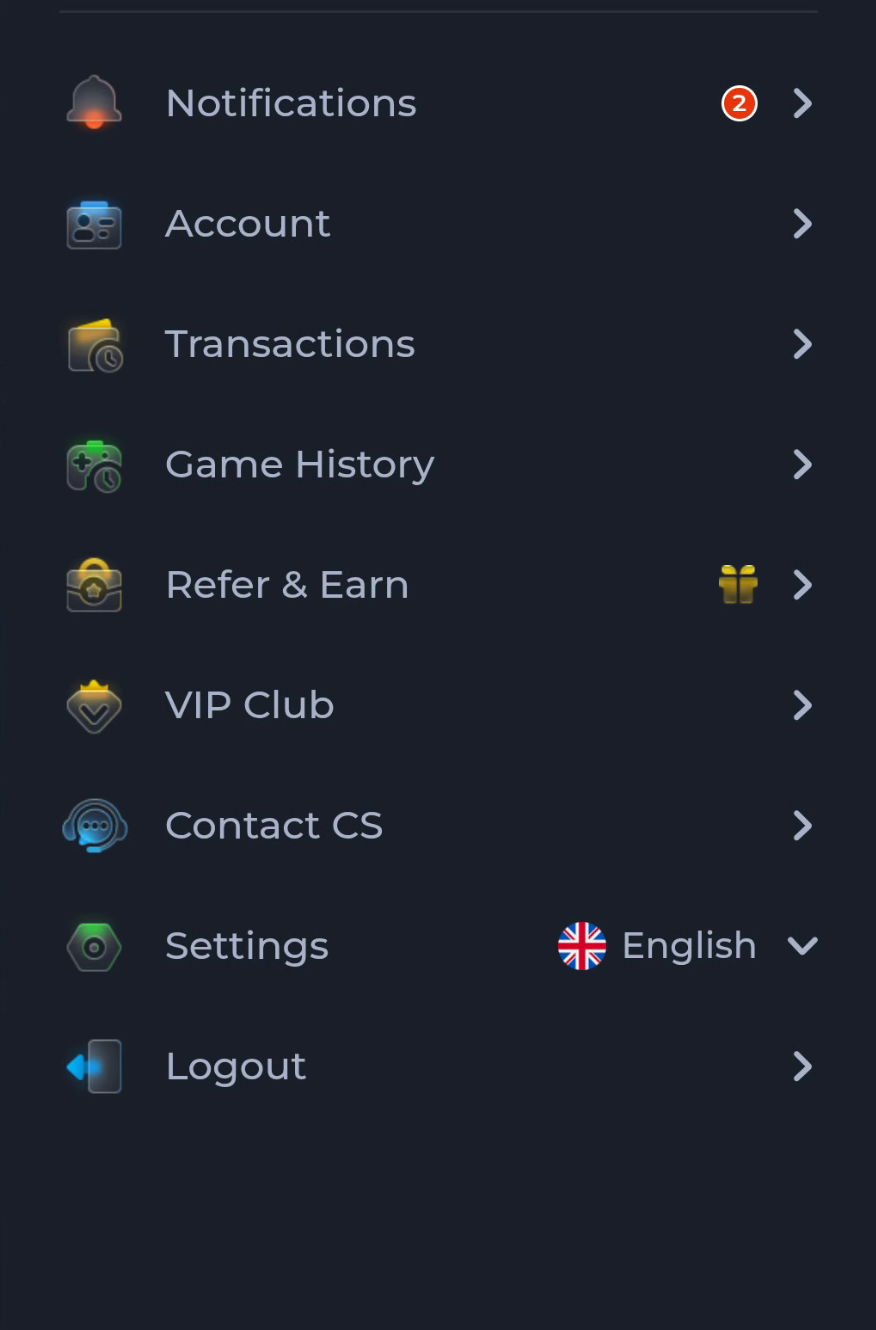
The account menu includes Contact CS and Settings as separate entries. If a preference is missing from your current interface, do not assume the screenshot guarantees that option on every device or account.
Distinguish an app preference from a phone setting
The phone’s volume, notification controls and permissions are separate from the app’s own panel. If a sound question persists, identify which control you changed before changing another one. That avoids confusing a muted phone with an in-app sound preference.
Check the result in the app
After making a preference change, return to the screen where it should apply and observe the result. An update is not automatically needed for a language or sound question.
Continue with the right guide
Choose another topic in Guides, or return to the main steps when you are ready.