 COME
COMECOME Update Failed: What to Record Before Retrying
Before retrying, record where the update stopped and the exact message. That prevents a download issue, an installer conflict and a connection problem from being treated as the same fault.
Use a four-part issue note
- Stage: external page, file transfer, Android installer or first open.
- Message: copy the visible wording without changing its meaning.
- Release: note the version offered and the existing installed version where visible.
- Device: record model, Android version and whether other pages load.
Recheck the update route
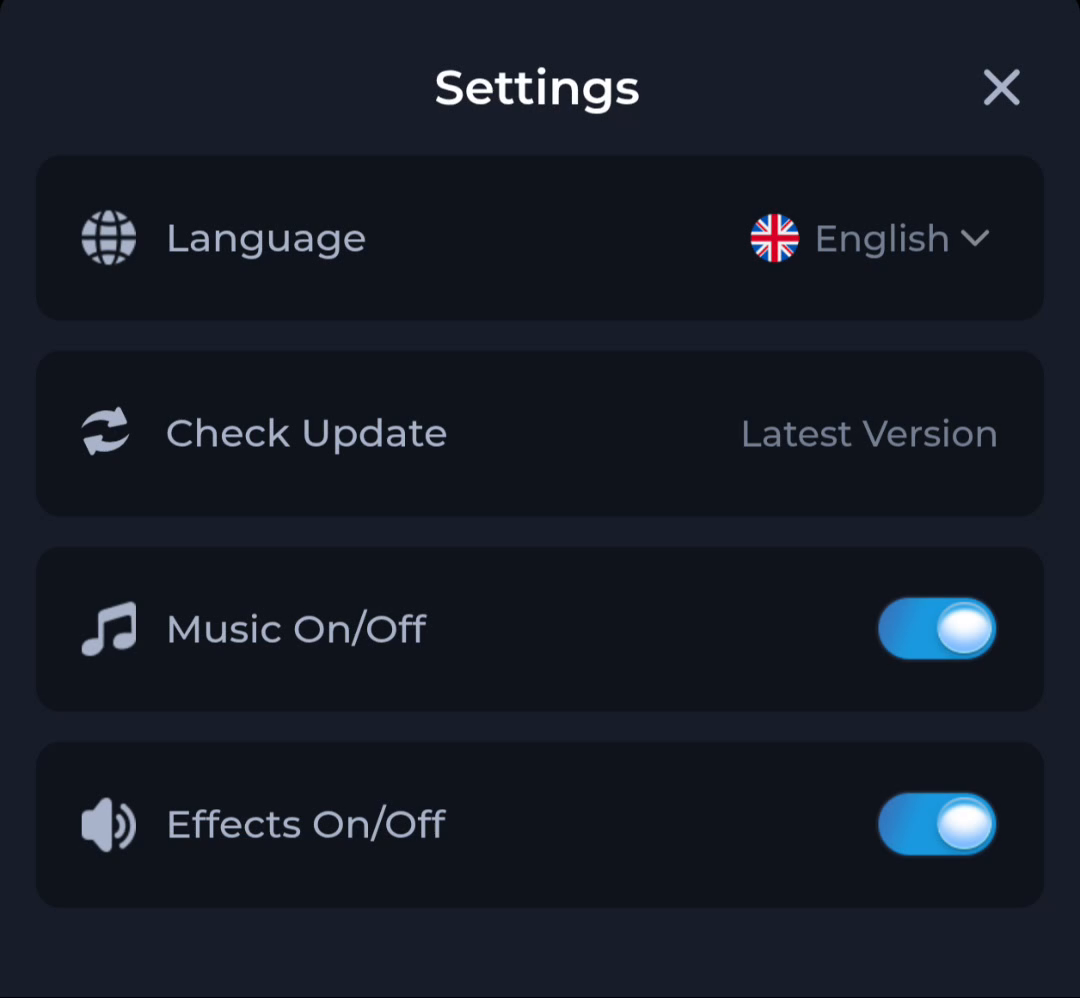
Start from the update information in the existing app when that route is available. Compare the release offered there with the file you actually downloaded. Do not force a different package merely because its filename looks newer.
Keep the network branch separate
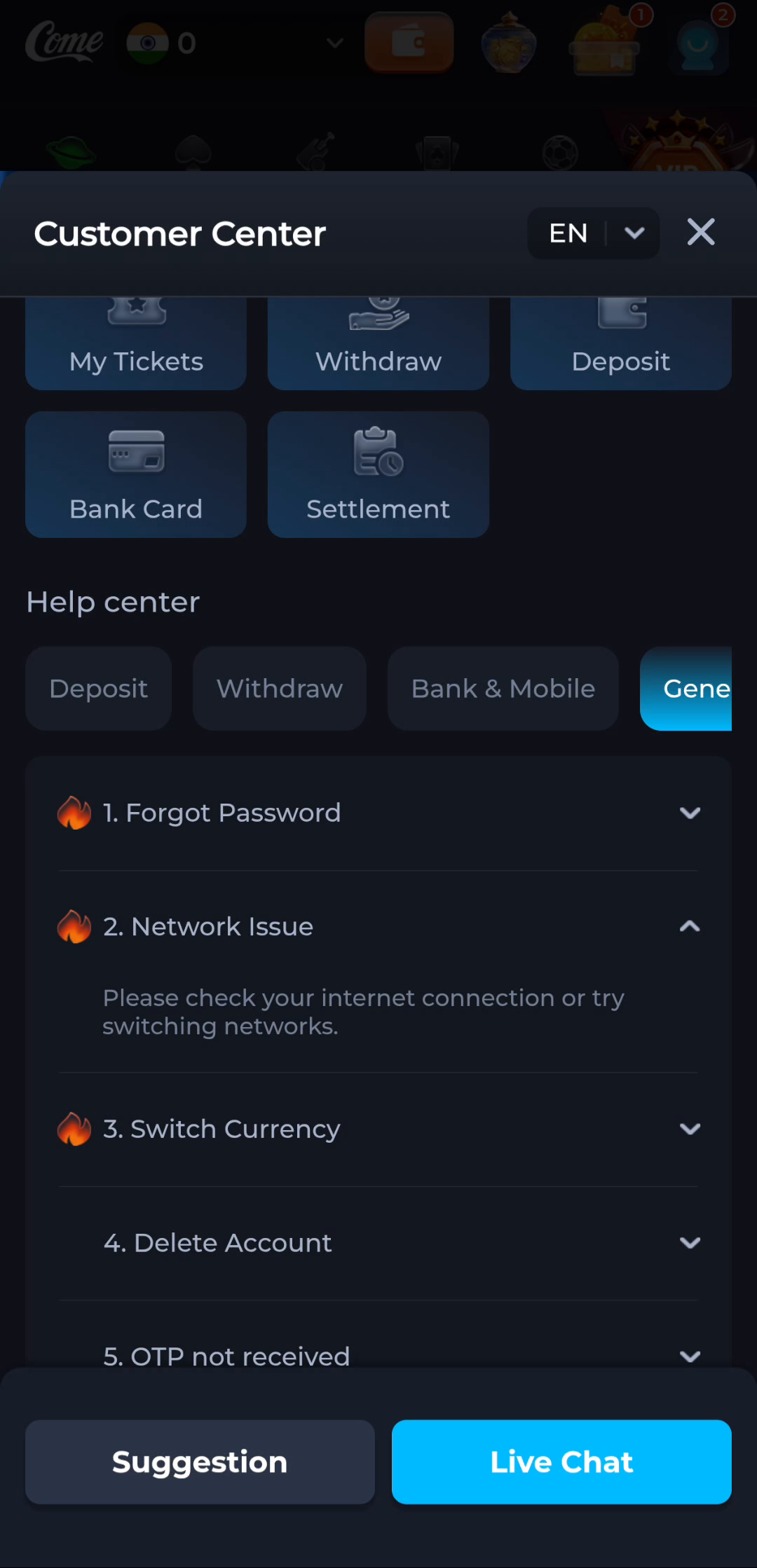
The pictured Network Issue topic concerns internet connectivity. If the app opens but cannot connect, test the connection before fetching another package. If Android rejects the file before the app opens, record the installer message instead.
Make one relevant attempt
Resolve a clear incomplete-transfer or storage issue, then check the result once. If the same message returns, preserve it and consult the appropriate device or service guidance. Repeating an unexplained installation attempt does not add new evidence.
Protect the working installation
Keep the existing app and account access until you understand whether the offered file is an update for that installation. Do not turn off protection or erase the app as a generic workaround.
Continue with the right guide
Choose another topic in Guides, or return to the main steps when you are ready.