 COME
COMERecord Your Installed COME Version Before an Update
Write down what is installed before opening another file. That gives you a baseline for comparing the release on the update page and confirming the result afterwards.
Make a minimal baseline
- Device model and Android version.
- Installed COME version if the phone or app displays it.
- The account sign-in method you can still access.
- The date and result of the update check.
Find the update control
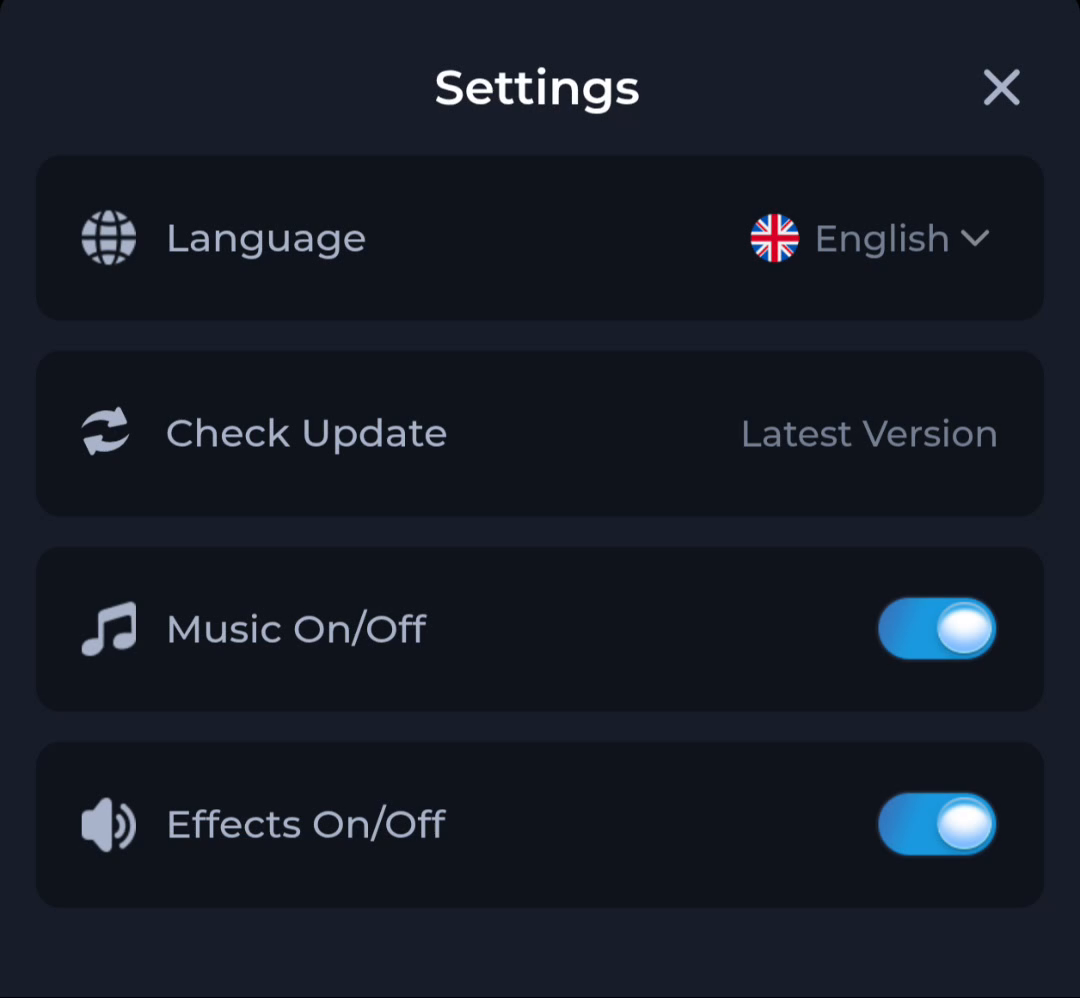
The pictured Settings panel places Check Update below Language. Use the control in your current interface where available, then read the information it returns. The status phrase Latest Version is not a numerical release identifier.
Compare like with like
Compare an installed version with an offered version, not with a filename date. A file saved today can be an older release. If the page gives no usable release detail, do not infer that it is newer merely because you reached it recently.
Keep the old state recoverable
Preserve access to the current app while reviewing the new release. Avoid clearing app data or uninstalling as a preparatory step. If an installer shows a conflict, keep the exact message so the next action can address the conflict itself.
Check the after-update state
Open the app, inspect the installed version again and note whether ordinary navigation works. A completed transfer means that the browser saved data. Check the installed application separately to confirm the update.
Continue with the right guide
Choose another topic in Guides, or return to the main steps when you are ready.